Stable Diffusion Image Generator

Upload
Try these prompts
Supports JPEG, PNG, GIF, WEBP, JPG formats Max 10MB, resolution max 4096 x 4096 pixels
Click or drag to upload images
Supports JPEG, PNG, GIF, WEBP, JPG formats (Max 10MB)
 Log in to Create for Free
Try these prompts
The main functions of Stable Diffusion

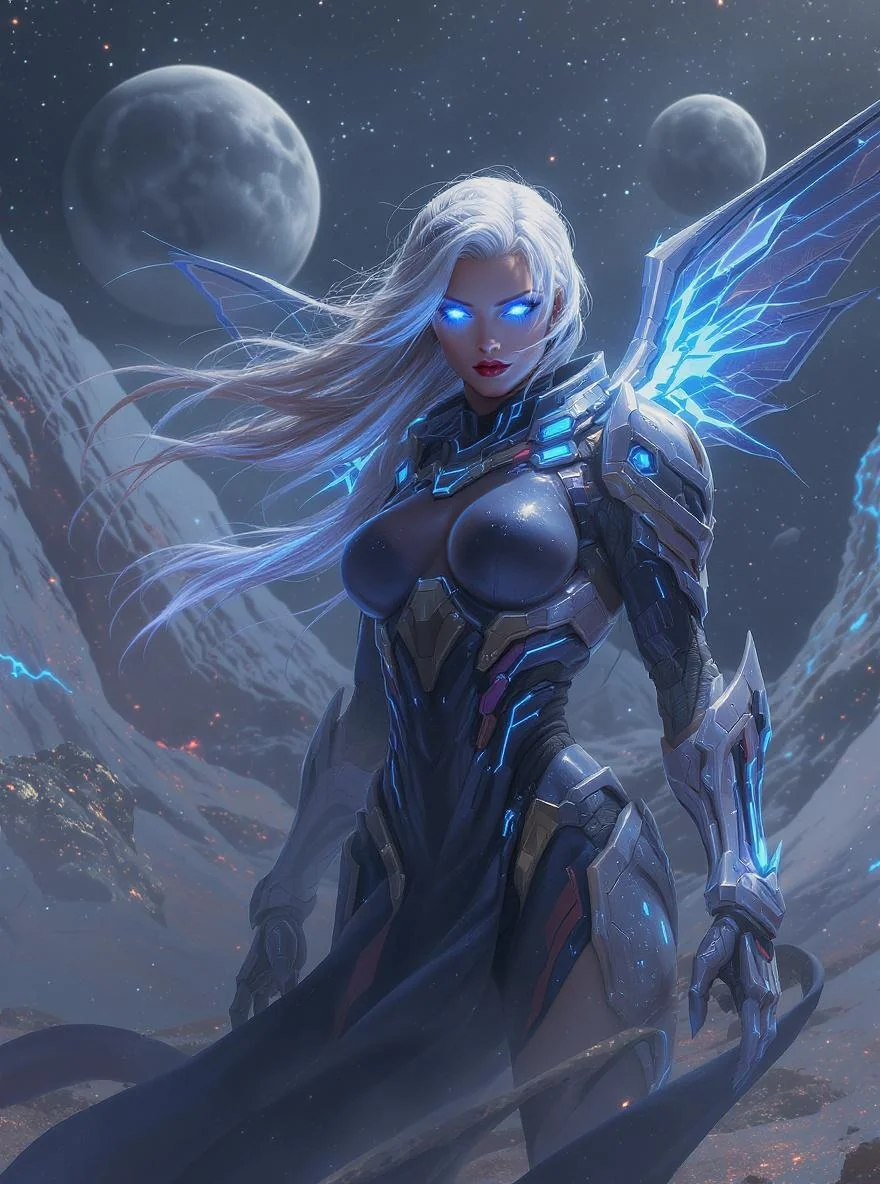
Create from prompt
Generate images that precisely meet your requirements through detailed text descriptions, giving you complete control over the creative process.
Reference image transformation
Perform style transformation and content reconstruction based on reference images, creating new artistic effects while retaining core elements.

Repair or expand the screen
Intelligently repair image defects or extend the boundaries of the picture, seamlessly blending newly generated content.
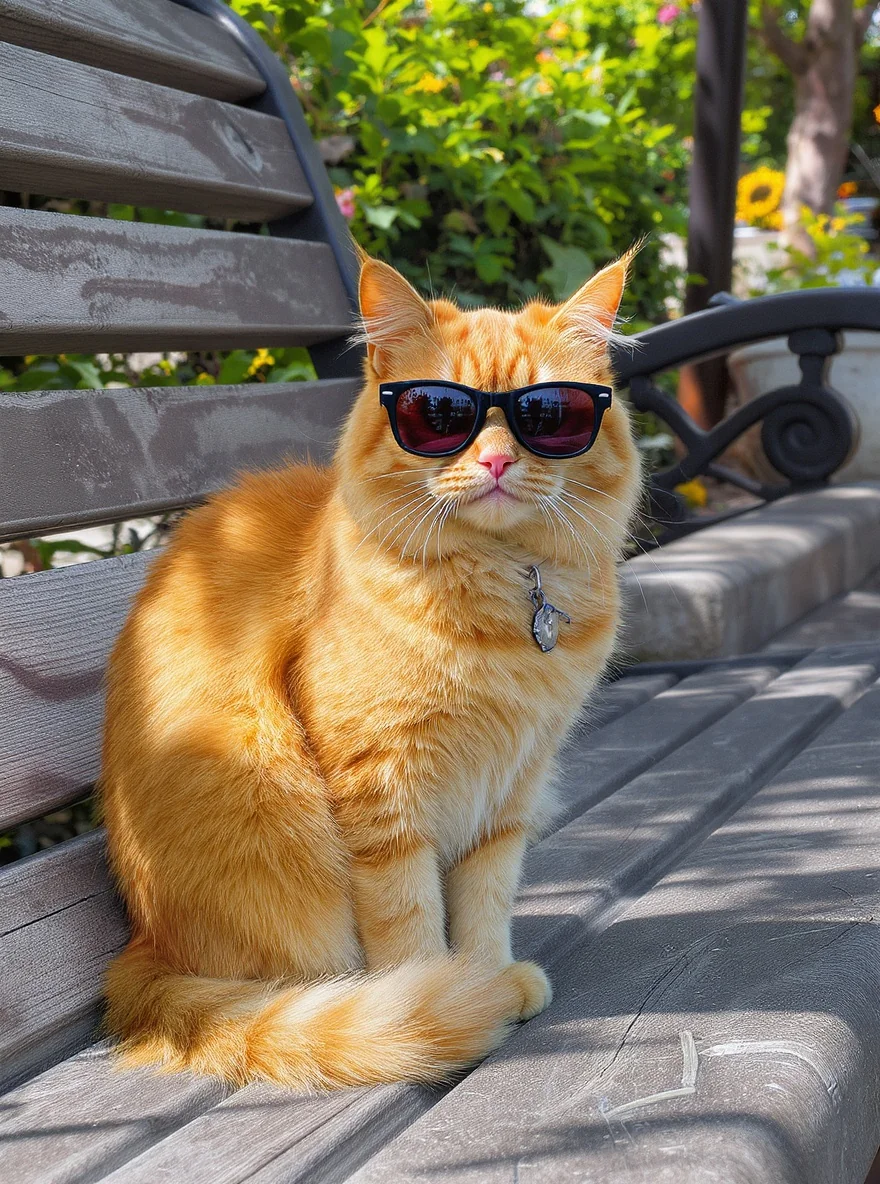
Flexible control
Achieve precise composition control through tools like ControlNet, including multidimensional guidance such as pose, depth, edges, and more.
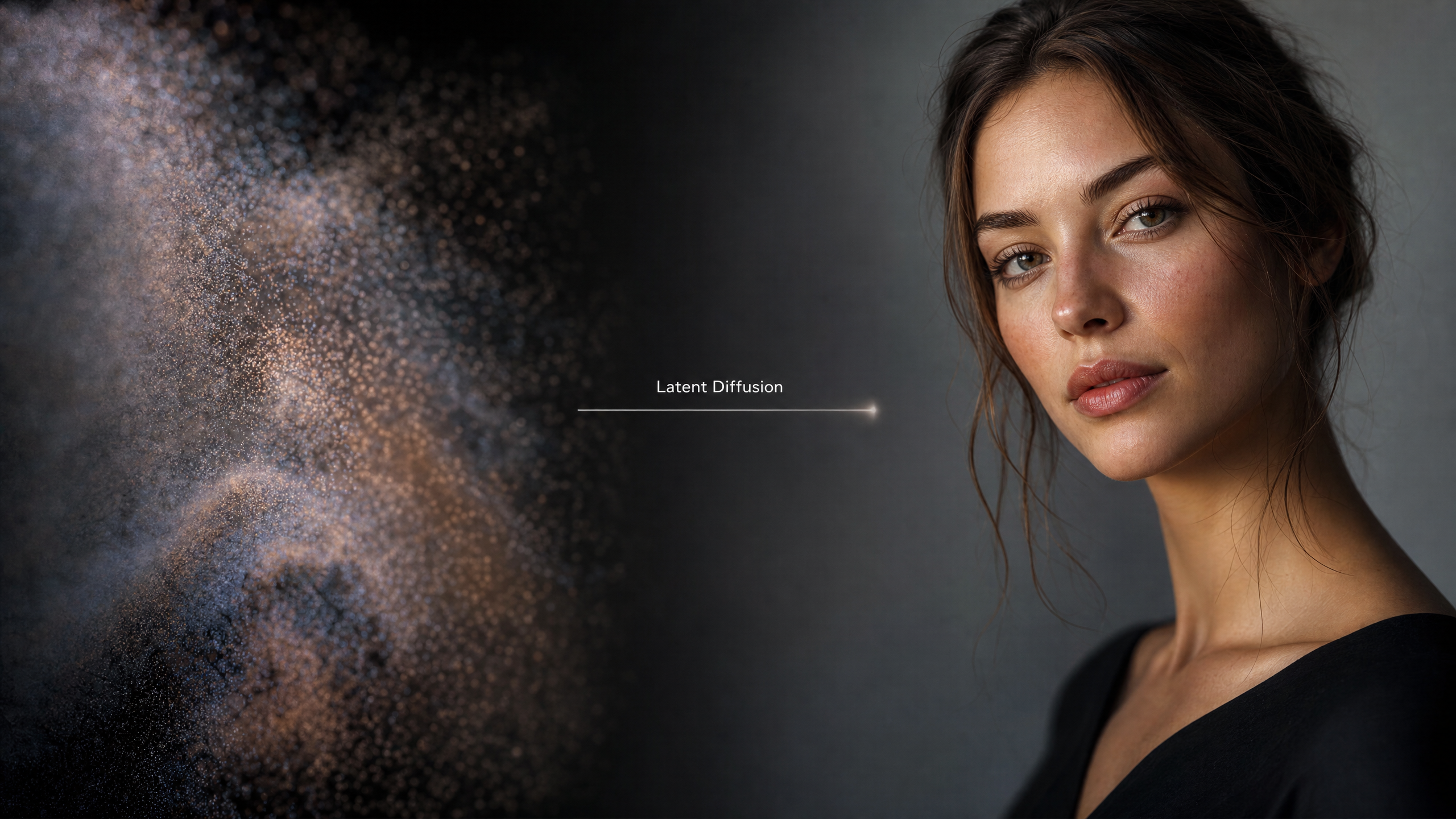
Potential Diffusion Technology
Perform efficient computation in the latent space, reducing generation costs while maintaining high-quality output, and supporting faster iteration speeds.
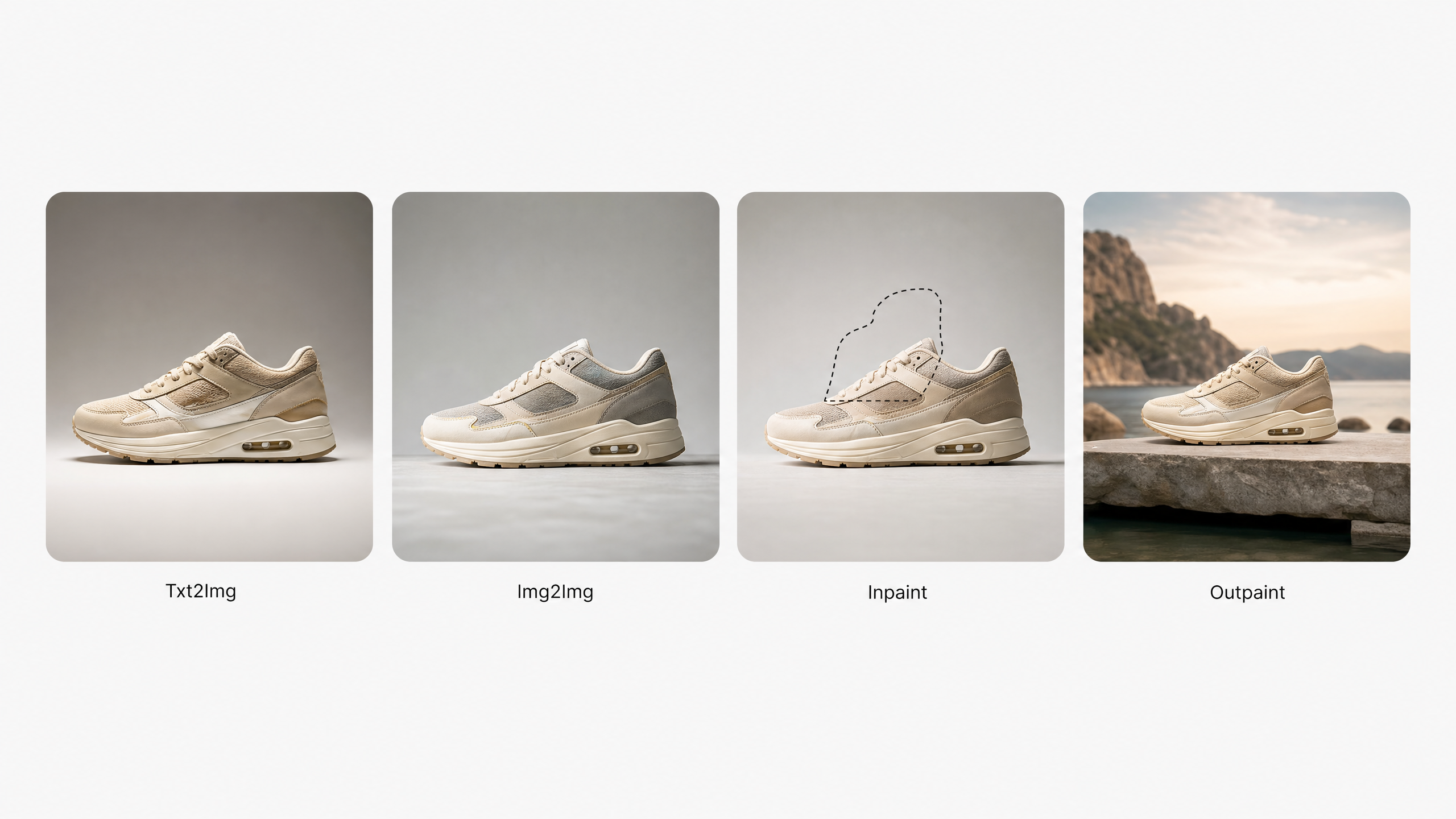
Multi-task workflow
Integrates multiple functions such as text-to-image, image-to-image, restoration, and expansion, completing complex creation processes within a unified interface.
How to use
Select Stable Diffusion model
Go to the 'AI Image Generation' page, and select 'Stable Diffusion' from the model dropdown menu.
Enter creation instructions
Describe the image you want to generate, or upload a reference image for style transfer and editing.
Adjust and generate
Adjust the parameters as needed, click 'Generate' to create the image, and you can iterate multiple times until satisfied.
YouTube videos about Stable Diffusion
Popular X posts about Stable Diffusion
Explore other models


Frequently Asked Questions
Stable Diffusion is an AI image model available on WeryAI for turning prompts into creative results.
Open the AI image workspace, select Stable Diffusion, add a prompt or reference, then generate and refine the result.

Are you ready to start creating?
Experience Stable Diffusion immediately and unleash your AI artistic creativity
No credit card required